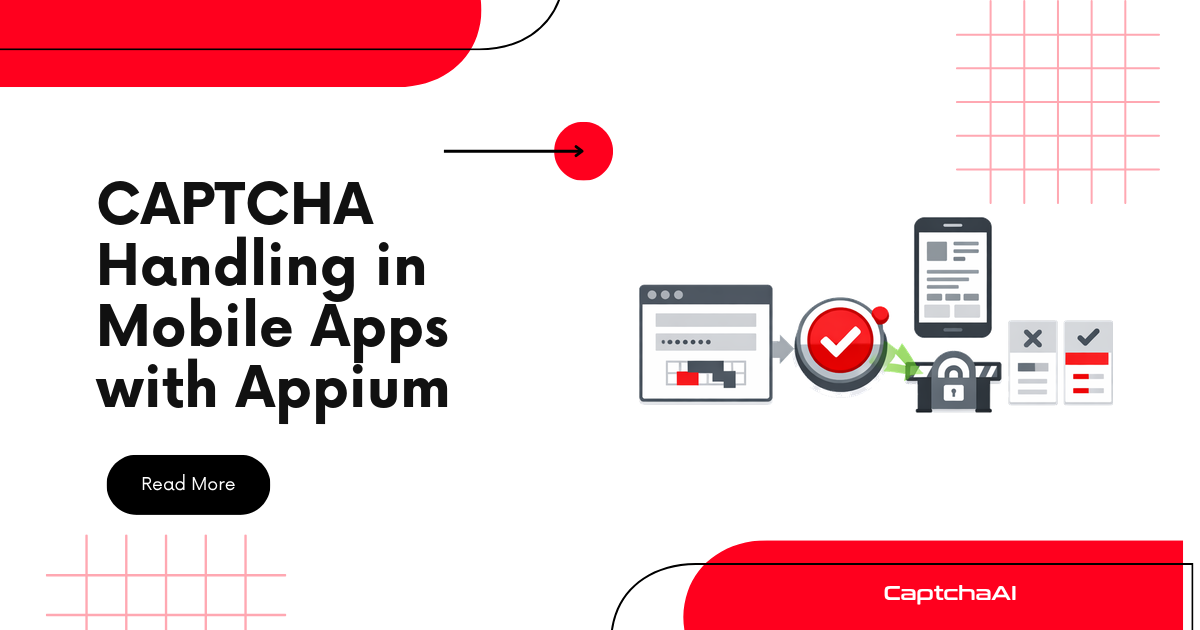
Mobile apps frequently embed CAPTCHAs in WebViews — reCAPTCHA, Turnstile, or hCaptcha rendered inside a native app. Appium can switch into these WebViews, extract sitekeys, and inject solved tokens from CaptchaAI.
How CAPTCHAs appear in mobile apps
| Pattern | Description | Approach |
|---|---|---|
| WebView CAPTCHA | reCAPTCHA/Turnstile in an embedded WebView | Switch to WebView context, extract sitekey |
| Browser redirect | App opens system browser for auth | Use Appium to read browser URL, solve externally |
| Native CAPTCHA | Custom image CAPTCHA rendered natively | Screenshot and use Image/OCR solver |
Most mobile CAPTCHAs are WebView-based — the same reCAPTCHA used on the web.
Setup: Appium with WebView debugging
Prerequisites
# Android: Enable WebView debugging in the app
# (Developers must set WebView.setWebContentsDebuggingEnabled(true))
# Or use a debug build of the app

# Install Appium
npm install -g appium
appium driver install uiautomator2  # Android
appium driver install xcuitest      # iOS
Appium capabilities
# Python
from appium import webdriver
from appium.options.android import UiAutomator2Options

options = UiAutomator2Options()
options.platform_name = "Android"
options.device_name = "emulator-5554"
options.app = "/path/to/app.apk"
options.auto_grant_permissions = True

driver = webdriver.Remote("http://localhost:4723", options=options)
Step 1: Find and switch to the WebView
import time

# Wait for WebView to load
time.sleep(5)

# List available contexts
contexts = driver.contexts
print(f"Contexts: {contexts}")
# ['NATIVE_APP', 'WEBVIEW_com.example.app']

# Switch to WebView
webview_context = [c for c in contexts if "WEBVIEW" in c]
if webview_context:
    driver.switch_to.context(webview_context[0])
    print(f"Switched to: {webview_context[0]}")
JavaScript (WebdriverIO)
const { remote } = require('webdriverio');

const driver = await remote({
  capabilities: {
    platformName: 'Android',
    'appium:deviceName': 'emulator-5554',
    'appium:app': '/path/to/app.apk',
    'appium:automationName': 'UiAutomator2',
  },
});

// Wait and switch to WebView
await driver.pause(5000);
const contexts = await driver.getContexts();
const webview = contexts.find(c => c.includes('WEBVIEW'));
if (webview) {
  await driver.switchContext(webview);
}
Step 2: Extract the sitekey
Once in the WebView context, you have full DOM access:
# In WebView context — same as browser automation
sitekey = driver.execute_script("""
    // reCAPTCHA
    const recaptcha = document.querySelector('.g-recaptcha');
    if (recaptcha) return { type: 'recaptcha', sitekey: recaptcha.getAttribute('data-sitekey') };

    // Turnstile
    const turnstile = document.querySelector('.cf-turnstile');
    if (turnstile) return { type: 'turnstile', sitekey: turnstile.getAttribute('data-sitekey') };

    // hCaptcha
    const hcaptcha = document.querySelector('.h-captcha');
    if (hcaptcha) return { type: 'hcaptcha', sitekey: hcaptcha.getAttribute('data-sitekey') };

    return null;
""")

page_url = driver.current_url
print(f"Type: {sitekey['type']}, Key: {sitekey['sitekey']}, URL: {page_url}")
Step 3: Solve with CaptchaAI
import requests

API_KEY = "YOUR_API_KEY"

method_map = {
    "recaptcha": "userrecaptcha",
    "turnstile": "turnstile",
    "hcaptcha": "hcaptcha",
}

# Build submit params
submit_data = {
    "key": API_KEY,
    "method": method_map[sitekey["type"]],
    "pageurl": page_url,
    "json": "1",
}

# Type-specific key parameter
if sitekey["type"] == "recaptcha":
    submit_data["googlekey"] = sitekey["sitekey"]
else:
    submit_data["sitekey"] = sitekey["sitekey"]

resp = requests.post("https://ocr.captchaai.com/in.php", data=submit_data).json()
task_id = resp["request"]

# Poll
for _ in range(24):
    time.sleep(5)
    result = requests.get("https://ocr.captchaai.com/res.php", params={
        "key": API_KEY, "action": "get", "id": task_id, "json": "1"
    }).json()

    if result["status"] == 1:
        token = result["request"]
        print(f"Token: {token[:50]}...")
        break
    if result["request"] != "CAPCHA_NOT_READY":
        raise Exception(f"Error: {result['request']}")
Step 4: Inject the token
# Still in WebView context
token_field_map = {
    "recaptcha": "g-recaptcha-response",
    "turnstile": "cf-turnstile-response",
    "hcaptcha": "h-captcha-response",
}

field_name = token_field_map[sitekey["type"]]

driver.execute_script(f"""
    // Set the hidden input
    const input = document.querySelector('textarea[name="{field_name}"], input[name="{field_name}"]');
    if (input) {{
        input.value = arguments[0];
        input.style.display = 'block';
    }}

    // Trigger callback if exists
    const widget = document.querySelector('.g-recaptcha, .cf-turnstile, .h-captcha');
    const callback = widget?.getAttribute('data-callback');
    if (callback && typeof window[callback] === 'function') {{
        window[callback](arguments[0]);
    }}
""", token)

# Submit the form
driver.execute_script("document.querySelector('form').submit()")

# Switch back to native context
driver.switch_to.context("NATIVE_APP")
Handling native image CAPTCHAs
If the CAPTCHA is rendered natively (not in a WebView), screenshot and use Image/OCR:
import base64

# Switch to native context
driver.switch_to.context("NATIVE_APP")

# Find and screenshot the CAPTCHA element
captcha_element = driver.find_element("id", "captcha_image")
screenshot_b64 = captcha_element.screenshot_as_base64

# Submit to CaptchaAI as image
resp = requests.post("https://ocr.captchaai.com/in.php", data={
    "key": API_KEY,
    "method": "base64",
    "body": screenshot_b64,
    "json": "1",
}).json()

task_id = resp["request"]

# Poll and get text answer
for _ in range(20):
    time.sleep(5)
    result = requests.get("https://ocr.captchaai.com/res.php", params={
        "key": API_KEY, "action": "get", "id": task_id, "json": "1"
    }).json()
    if result["status"] == 1:
        answer = result["request"]
        break

# Type the answer into the input field
captcha_input = driver.find_element("id", "captcha_input")
captcha_input.send_keys(answer)
Troubleshooting
| Problem | Cause | Fix |
|---|---|---|
| No WEBVIEW context | WebView debugging not enabled | Use a debug build or set setWebContentsDebuggingEnabled(true) |
| Can't find sitekey | CAPTCHA loaded dynamically | Add wait before extraction; use MutationObserver |
| Token injection fails | Wrong field name | Check the CAPTCHA type and corresponding input name |
| Context switch fails | Multiple WebViews | List all contexts and select the correct one |
FAQ
Does this work on iOS?
Yes. Use the xcuitest driver. iOS WebViews are automatically debuggable in simulator and development-signed apps.
What if the app uses a custom browser?
If the app opens Chrome Custom Tabs or SFSafariViewController, Appium can't access the content. Use a proxy to intercept the CAPTCHA parameters instead.
Solve mobile CAPTCHAs with CaptchaAI
Get your API key at captchaai.com.
Related guides
Full Working Code
Complete runnable examples for this article in Python, Node.js, PHP, Go, Java, C#, Ruby, Rust, Kotlin & Bash.
View on GitHub →
Discussions (0)
Join the conversation
Sign in to share your opinion.
Sign InNo comments yet.