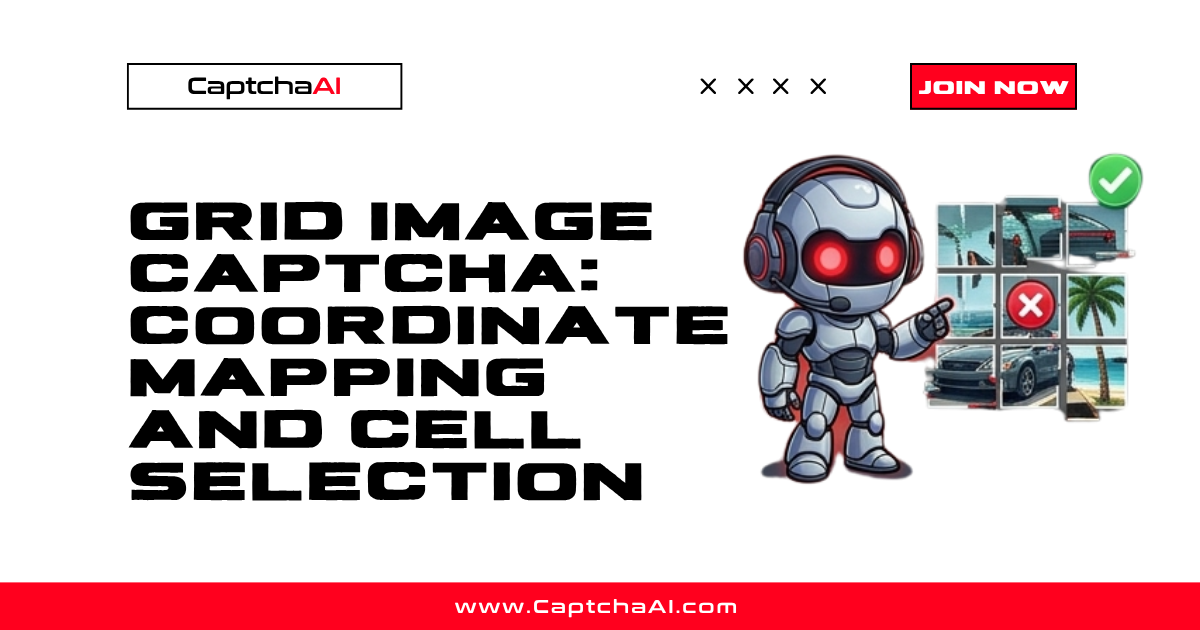
Grid image CAPTCHAs — like reCAPTCHA v2 image challenges — present a 3×3 or 4×4 grid and ask users to select cells matching an instruction ("Select all squares with traffic lights"). CaptchaAI returns the cell indices. This guide covers how to capture the grid, map cells to coordinates, and click the correct tiles.
Grid layouts
CAPTCHAs use two standard grid sizes:
3×3 Grid:          4×4 Grid:
1  2  3            1   2   3   4
4  5  6            5   6   7   8
7  8  9            9  10  11  12
                   13  14  15  16
Cells are numbered left-to-right, top-to-bottom — reading order.
Step 1: Capture the grid image
Python (Selenium)
import base64
from selenium import webdriver
from selenium.webdriver.common.by import By
from selenium.webdriver.support.ui import WebDriverWait
from selenium.webdriver.support import expected_conditions as EC

driver = webdriver.Chrome()
driver.get("https://example.com/form")

# Wait for reCAPTCHA iframe
WebDriverWait(driver, 10).until(
    EC.presence_of_element_located((By.CSS_SELECTOR, "iframe[src*='recaptcha']"))
)

# Switch to challenge iframe
iframes = driver.find_elements(By.CSS_SELECTOR, "iframe[src*='recaptcha']")
challenge_iframe = iframes[-1]  # Challenge iframe is typically the last one
driver.switch_to.frame(challenge_iframe)

# Get the grid image
grid_img = driver.find_element(By.CSS_SELECTOR, "img.rc-image-tile-33, img.rc-image-tile-44")
img_src = grid_img.get_attribute("src")

# Get instruction text
instruction = driver.find_element(
    By.CSS_SELECTOR, ".rc-imageselect-desc-wrapper"
).text
print(f"Instruction: {instruction}")

# Screenshot the grid as base64
img_b64 = grid_img.screenshot_as_base64

# Determine grid size
classes = grid_img.get_attribute("class")
grid_size = "4x4" if "44" in classes else "3x3"
print(f"Grid size: {grid_size}")

driver.switch_to.default_content()
JavaScript (Puppeteer)
const puppeteer = require('puppeteer');
const fs = require('fs');

const browser = await puppeteer.launch({ headless: false });
const page = await browser.newPage();
await page.goto('https://example.com/form');

// Find the challenge iframe
const frames = page.frames();
const challengeFrame = frames.find(f => f.url().includes('recaptcha'));

// Get instruction
const instruction = await challengeFrame.$eval(
  '.rc-imageselect-desc-wrapper',
  el => el.textContent.trim()
);

// Screenshot the grid image
const gridImg = await challengeFrame.$('img.rc-image-tile-33, img.rc-image-tile-44');
const imgBuffer = await gridImg.screenshot();
const imgBase64 = imgBuffer.toString('base64');

// Determine grid size
const className = await challengeFrame.$eval(
  'img.rc-image-tile-33, img.rc-image-tile-44',
  el => el.className
);
const gridSize = className.includes('44') ? '4x4' : '3x3';
console.log(`Grid: ${gridSize}, Instruction: ${instruction}`);
Step 2: Submit to CaptchaAI
import requests
import time
import json

API_KEY = "YOUR_API_KEY"

# Parse the instruction to a simple keyword
# "Select all images with traffic lights" → "traffic lights"
import re
keyword_match = re.search(r'(?:with|of|containing)\s+(.+?)\.?$', instruction, re.I)
keyword = keyword_match.group(1) if keyword_match else instruction

# Submit
with open("/tmp/grid.png", "wb") as f:
    f.write(base64.b64decode(img_b64))

with open("/tmp/grid.png", "rb") as f:
    resp = requests.post("https://ocr.captchaai.com/in.php",
        files={"file": f},
        data={
            "key": API_KEY,
            "method": "post",
            "grid_size": grid_size,
            "img_type": "recaptcha",
            "instructions": keyword,
            "json": "1",
        }
    ).json()

if resp["status"] != 1:
    raise Exception(f"Submit error: {resp['request']}")

task_id = resp["request"]

# Poll
for _ in range(20):
    time.sleep(5)
    result = requests.get("https://ocr.captchaai.com/res.php", params={
        "key": API_KEY, "action": "get", "id": task_id, "json": "1"
    }).json()

    if result["status"] == 1:
        cells = json.loads(result["request"])
        print(f"Cells to click: {cells}")  # e.g., [1, 3, 6, 9]
        break
    if result["request"] != "CAPCHA_NOT_READY":
        raise Exception(f"Error: {result['request']}")
Step 3: Map cell indices to click coordinates
Convert 1-based cell indices to pixel coordinates within the grid:
def cell_to_coordinates(cell_index, grid_size, grid_width, grid_height):
    """Convert a 1-based cell index to (x, y) center coordinates."""
    if grid_size == "3x3":
        cols, rows = 3, 3
    else:
        cols, rows = 4, 4

    cell_w = grid_width / cols
    cell_h = grid_height / rows

    # Convert 1-based index to 0-based row/col
    idx = cell_index - 1
    col = idx % cols
    row = idx // cols

    # Center of the cell
    x = col * cell_w + cell_w / 2
    y = row * cell_h + cell_h / 2

    return int(x), int(y)

# Example: grid is 300×300
for cell in cells:
    x, y = cell_to_coordinates(cell, grid_size, 300, 300)
    print(f"Cell {cell} → ({x}, {y})")
Output for a 3×3 grid (300×300):
Cell 1 → (50, 50)
Cell 3 → (250, 50)
Cell 6 → (250, 150)
Cell 9 → (250, 250)
Step 4: Click the cells
Selenium
from selenium.webdriver.common.action_chains import ActionChains

driver.switch_to.frame(challenge_iframe)

# Get grid element position and size
grid_el = driver.find_element(By.CSS_SELECTOR, ".rc-imageselect-target")
grid_rect = grid_el.rect
grid_w = grid_rect["width"]
grid_h = grid_rect["height"]

actions = ActionChains(driver)

for cell in cells:
    x, y = cell_to_coordinates(cell, grid_size, grid_w, grid_h)
    # Click relative to grid element's top-left corner
    actions.move_to_element_with_offset(
        grid_el,
        x - grid_w / 2,  # offset from center
        y - grid_h / 2
    ).click()

actions.perform()

# Click verify
verify_btn = driver.find_element(By.ID, "recaptcha-verify-button")
verify_btn.click()

driver.switch_to.default_content()
Puppeteer
// Click each cell by index
const tableRows = await challengeFrame.$$('table.rc-imageselect-table tr');
for (const cellIdx of cells) {
  const row = Math.floor((cellIdx - 1) / (gridSize === '4x4' ? 4 : 3));
  const col = (cellIdx - 1) % (gridSize === '4x4' ? 4 : 3);
  const cell = (await tableRows[row].$$('td'))[col];
  await cell.click();
  await new Promise(r => setTimeout(r, 200));
}

await challengeFrame.click('#recaptcha-verify-button');
Handling dynamic tiles
Some reCAPTCHA v2 grids replace clicked tiles with new images. Handle this with a retry loop:
def solve_with_dynamic_tiles(driver, api_key, max_rounds=3):
    for round_num in range(max_rounds):
        driver.switch_to.frame(challenge_iframe)

        # Re-capture grid and instruction
        img_b64 = driver.find_element(
            By.CSS_SELECTOR, "img.rc-image-tile-33"
        ).screenshot_as_base64

        # Submit and get cells (same as above)
        cells = submit_and_poll(api_key, img_b64, "3x3", keyword)

        if not cells:
            break

        # Click cells
        click_cells(driver, cells, "3x3")

        # Click verify
        driver.find_element(By.ID, "recaptcha-verify-button").click()

        driver.switch_to.default_content()
        time.sleep(2)

        # Check if solved (no more challenge iframe)
        try:
            driver.switch_to.frame(challenge_iframe)
            driver.switch_to.default_content()
        except Exception:
            return True  # Solved

    return False
Troubleshooting
| Problem | Cause | Fix |
|---|---|---|
| Wrong cells returned | Wrong grid_size |
Check if grid is 3×3 or 4×4 |
| Clicks miss cells | Coordinate offset wrong | Verify grid element dimensions |
ERROR_WRONG_FILE_EXTENSION |
Bad image format | Use PNG or JPEG |
| New tiles appear after clicking | Dynamic grid | Re-solve after each round |
FAQ
Does CaptchaAI support 4×4 grids?
Yes. Set grid_size=4x4 and the response will use indices 1-16.
How accurate is grid image solving?
Accuracy depends on image quality. Send the original CAPTCHA image without cropping or compression.
Solve grid image CAPTCHAs with CaptchaAI
Get your API key at captchaai.com.
Discussions (0)
Join the conversation
Sign in to share your opinion.
Sign InNo comments yet.