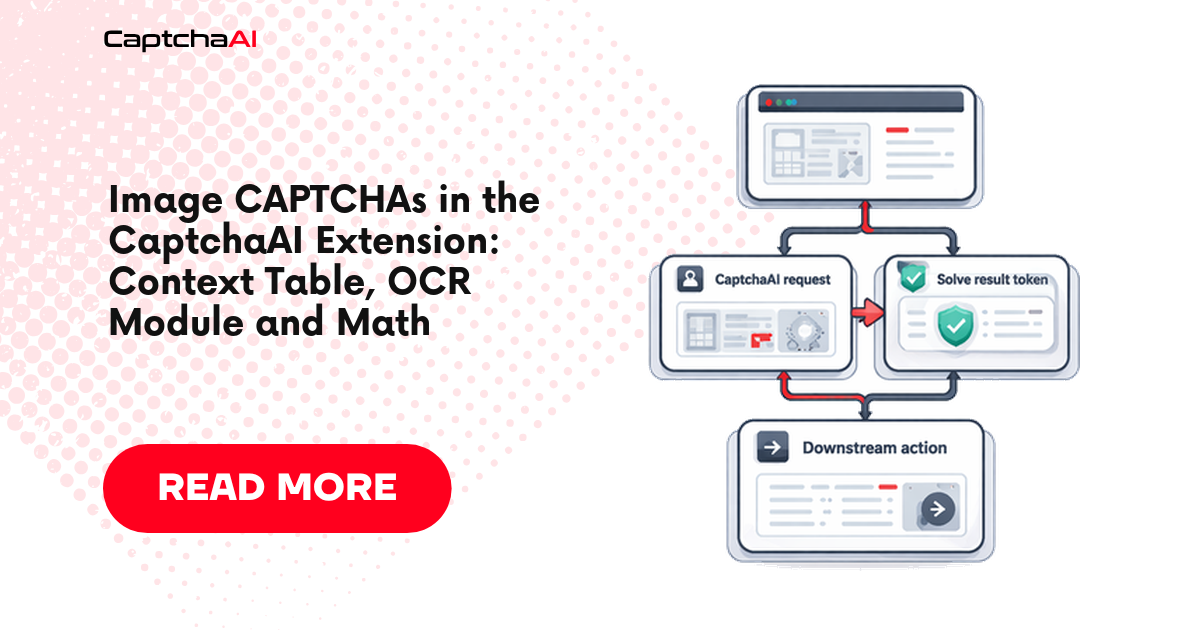
The CaptchaAI Chrome extension solves classic text, number and simple math image CAPTCHAs by reading the picture, sending it to CaptchaAI's Normal (OCR) solver and typing the answer into a field. When it misses the image or fills the wrong box, you can teach it the page in two right-clicks, pin the page down with an Image Context Table row, or, on forms you own, tag the markup with two data attributes. One constraint shapes every choice below: whichever route finds the CAPTCHA, the extension sends only the image and an optional module name, so hints such as "numbers only" or "case-sensitive" need a direct API call.
Everything here was checked against the Chrome Web Store build 4.0.1 (updated April 7, 2026). Use it on your own forms or on forms you're authorized to test. reCAPTCHA image grids go through a different solver; their settings are in the complete extension guide.
How the extension looks for an image CAPTCHA
On every scan the extension runs four checks in a fixed order, and a form handled by an earlier check is skipped by the later ones:
- The master switch. Normal captcha image in the popup's Auto-Solve list. If it's off, nothing below runs, including your Context Table rows.
- Data attributes on the page:
data-captchaai-ocr-imageanddata-captchaai-ocr-input, covered further down. - Image Context Table rows whose URL Pattern matches the current address.
- Heuristics, but only while Auto Detect is on. The popup's Auto Detect button and the Auto Detect & Solve (Heuristics) toggle on the settings page are the same setting.
With overlay notifications on (the default), the message tells you which path fired. Attribute and table solves report "OCR Solved!", a heuristic solve reports "Solved and filled nearby input", and a failure on any path shows "OCR Failed".
The settings live on the Normal captcha image tab of the settings page, which opens from the gear icon in the popup. The shipped defaults:
| Setting | Default in 4.0.1 | Notes |
|---|---|---|
| Normal captcha image (popup) | On | Master switch for this solver |
| Auto Detect / Auto Detect & Solve (Heuristics) | On | Only the heuristic pass depends on it |
| Polling Interval (ms) | 2000 | Held between 1000 and 8000 |
| OCR Module | none |
No module parameter is sent |
| Auto-Evaluate Math | On | Calculated in the browser, not by the API |
| Auto Submit | Off | Action after solving: None (just fill input) |
Changes on that tab take effect when you click Save All Settings. Context Table rows are stored the moment you save the row.
What the heuristics look for
Heuristics consider <img> elements only. An image becomes a candidate when "captcha" appears in its src, id, class or alt, when its src contains "securimage", when its src contains both "verify" and "image", or when it sits inside a .captcha or .captcha-image container. BotDetect-style markup (.BDC_CaptchaImageDiv img) gets a strong boost, and its reload and sound icons are ignored. Images narrower than 20 pixels or shorter than 10 are skipped, and so are images whose attributes pair a CAPTCHA word with logo, icon, badge, avatar, wordmark, brand, thumbnail or illustration, so a captcha-logo.png in a footer is never read.
The answer field is chosen by proximity. The extension gathers text inputs and textareas in the same form as the image, or up to four parent levels above it, and scores each one. Names, ids, placeholders, aria-label values or classes containing captcha, verify, code, answer or security add points; ones containing email, search, phone, name, user, pass or login lose points; sharing a form or parent with the image and sitting just below it add more. Only type="text" inputs, inputs without a type, and textareas take part, and disabled or read-only ones are skipped. That is why a math CAPTCHA with <input type="number"> often goes unsolved until you map it. The one exception is a field named exactly code or answer, which the scan looks up directly.
When a heuristic solve succeeds and both generated selectors look stable, the extension asks "This worked. Save this setup for this site?" Stable means anchored on an id, a name, a data-, aria-, role, alt or title attribute, or a class such as .captcha, rather than a long positional chain. Yes, save writes an Image Context Table row. No is remembered for that page and selector pair, so the prompt won't return, and it also stays away when a matching row already exists.
Teach a site in two right-clicks
When the heuristics miss the image or fill the wrong box, mark the pair by hand. Marking works whether Auto Detect is on or off.
- Right-click the CAPTCHA image and choose CaptchaAI > Mark as captcha image. The overlay answers "Image marked. Now right-click the result input."
- Right-click the answer field and choose CaptchaAI > Mark as result input. Chrome offers this item only on editable fields. If the overlay says "Click inside the target input first, then try Mark as result input again.", the extension couldn't resolve an
<input>or<textarea>. That happens with acontenteditablebox, with a field inside a web component's shadow root, or when more than 15 seconds pass between the right-click and the menu choice. For the last case, click into the field and repeat. - The extension saves the pair ("Added to the Image Context Table", or "Updated the Image Context Table" when the row already existed) and runs a solve about half a second later.
The order doesn't matter: mark the input first and the overlay asks for the image instead. A pending mark expires after 10 minutes or as soon as the URL changes.
Unlike the heuristic prompt, manual marking saves whatever selectors it generated, stable or not. Open the Context Table afterwards and replace anything positional, such as div:nth-of-type(3) > img, or tied to an id that changes per session. The saved URL Pattern is the page's origin and path plus *, with the query string dropped, and the new row copies your current Action after solving value.
The same right-click menu has Solve Captcha on this page, which runs the full scan on demand, and Normal captcha image guide, which opens the extension's built-in guide.
The Image Context Table, field by field
Open the Context Table tab on the settings page and click + Add Entry. URL Pattern, Image Selector and Input Selector are required, and the form rejects any selector that doesn't parse.
| Field | How 4.0.1 uses it |
|---|---|
| URL Pattern | * matches any run of characters, matching ignores case, and the pattern may match anywhere in the full URL, query string included. example.com/contact* works without a scheme, and https://example.com/* covers a whole site. Inside an iframe, the frame's own URL is tested. |
| Image Selector | Passed to document.querySelector, so only the first match counts. It can point at an <img> or at any element with a CSS background-image; a CAPTCHA drawn on a <canvas> is neither, so no row can read it. If it finds nothing but the Input Selector does, the extension searches around that input for the image. |
| Input Selector | Must resolve to an <input> (any type, number included) or a <textarea>. If it doesn't, the extension falls back to the nearest text field beside the image. |
| OCR Module | default inherits the global OCR Module, none sends no module, and any other value is sent as the API's module. |
| Action | Default follows the global Action after solving. None only fills the field; Submit Form submits the nearest form; Click Button clicks the element in the "Button Selector explicitly" field. |
Two behaviours catch people out. A row's Action runs only when Auto Submit is switched on in the Normal captcha image tab; with it off, every row just fills the field. And Auto-Evaluate Math has no per-row switch, so it applies to every image solve.
Before saving a row, try it in the DevTools Console of the target page. The snippet applies the same URL-pattern conversion the extension uses and counts the selector matches. For selectors that survive a changing attribute, MDN's attribute selector reference covers the substring (*=) and prefix (^=) forms and the i flag for case-insensitive values.
// Paste into the DevTools Console of the page (or frame) that shows the CAPTCHA.
// It checks a Context Table row the way the CaptchaAI extension 4.0.1 reads one.
const row = {
  urlPattern: 'support.example.org/contact*',
  imageSelector: 'img[alt="Math question"]',
  inputSelector: '#contact input[name="sum"]',
};

// "*" becomes ".*", everything else is literal, case is ignored, match anywhere.
const pattern = row.urlPattern
  .replace(/[.*+?^${}()|[\]\\]/g, '\\$&')
  .replace(/\\\*/g, '.*');
const input = document.querySelector(row.inputSelector);

console.table({
  urlMatches: new RegExp(pattern, 'i').test(window.location.href),
  imageMatches: document.querySelectorAll(row.imageSelector).length,
  inputMatches: document.querySelectorAll(row.inputSelector).length,
  inputIsTextField: input instanceof HTMLInputElement || input instanceof HTMLTextAreaElement,
});
You want urlMatches true, exactly one image match and exactly one input match. Two or more matches mean the row will use whichever element comes first in the document, which may not be the one you meant.
Worked rows for pages the heuristics miss
Three patterns cause most misses: an image whose URL says nothing about CAPTCHAs, an answer field the proximity search won't consider, and a CAPTCHA that isn't an <img> at all.
| # | Page | URL Pattern | Image Selector | Input Selector | OCR Module | Action |
|---|---|---|---|---|---|---|
| 1 | Order-status lookup; image served from /img/v.php, answer field vcode |
https://shop.example.com/orders/lookup* |
#lookup-form img[src*="/img/v.php"] |
#lookup-form input[name="vcode"] |
default | None |
| 2 | Contact form with a math question and a number field | https://support.example.org/contact* |
img[alt="Math question"] |
#contact input[name="sum"] |
default | Submit Form |
| 3 | Staging challenge drawn as a CSS background, Verify button outside any form | *://staging.example.net/* |
div.challenge-art |
#challenge-answer |
common-1 |
Click Button: button[data-step="verify"] |
The markup behind rows 2 and 3:
<!-- Row 2: https://support.example.org/contact -->
<form id="contact" action="/contact" method="post">
  <textarea name="message"></textarea>
  <img src="/sum.png?q=7f3a" alt="Math question" width="120" height="40">
  <input type="number" name="sum" min="0">
  <button type="submit">Send</button>
</form>

<!-- Row 3: https://staging.example.net/checkout -->
<div class="challenge">
  <div class="challenge-art" role="img" aria-label="Type the characters"></div>
  <input type="text" id="challenge-answer" autocomplete="off">
</div>
<button type="button" data-step="verify">Verify</button>
/* Row 3: the CAPTCHA is a background image, not an <img> element */
.challenge-art {
  width: 200px;
  height: 64px;
  background-image: url("/challenge/7f3a.png");
  background-size: cover;
}
Row 1. The image's src /img/v.php?t=... carries none of the heuristic keywords, and vcode isn't exactly code, so neither the image-first nor the input-first scan finds the pair. The *= substring match keeps the selector valid when the query string changes with every challenge. It also survives a template that writes the address in full, because attribute selectors test the src exactly as it appears in the HTML, not the resolved URL; a ^="/img/v.php" prefix would stop matching there. Scoping both selectors to #lookup-form keeps a search box elsewhere on the page out of play.
Row 2. type="number" keeps the field out of the proximity search, so the row names it directly. Auto-Evaluate Math turns an OCR result of 7+5= into 12. Submit Form sends the form only if Auto Submit is on.
Row 3. A background-image is never considered by the heuristic scan, and right-click marking can't create this row either, because Chrome shows Mark as captcha image only on <img> elements; type it into the table yourself. The extension reads the url() from the computed style and requests that address again (the browser cache may answer), so the URL has to identify one challenge rather than generate a fresh one on each request. It sends the whole file, too, so a sprite sheet cropped with background-position reaches the solver uncropped. The Verify button sits outside any form, hence Click Button instead of Submit Form. The *:// wildcard lets one row serve both the http and https staging hosts, and the module is set on the row, not globally, so it only affects this site.
Tagging your own forms with data attributes
If you own the form, you can skip selectors entirely. Add data-captchaai-ocr-image to the image and data-captchaai-ocr-input to the answer field, with the same value on both. Pairs are matched by that value, so a page with two CAPTCHAs gives each pair its own name. Attribute pairs are checked before Context Table rows and heuristics, work with Auto Detect off, accept any input type or a textarea, and don't need to sit in the same form. The older names captchaai-image-source and captchaai-image-result are still read.
<form action="/support/ticket" method="post">
  <label for="subject">Subject</label>
  <input type="text" id="subject" name="subject">

  <img src="/captcha/ticket.png?r=1727600000" alt="Security check" width="160" height="50"
       data-captchaai-ocr-image="ticket">
  <label for="ticket-code">Type the characters shown</label>
  <input type="text" id="ticket-code" name="ticket_code" autocomplete="off"
         data-captchaai-ocr-input="ticket">

  <button type="submit">Open ticket</button>
</form>
If you'd rather not publish the attributes, render them only in test and staging builds. Two server-side details decide whether the solve works at all:
- Serve the image from the page's own origin, or answer its requests with an
Access-Control-Allow-Originheader. The extension reads pixels through a canvas, and a cross-origin image without CORS approval taints it (MDN on CORS-enabled images). The fallback download runs from the page's origin under the same rules, so without either one the solve ends in "OCR Failed". - Give every refreshed image a new URL, for example with a
?r=timestamp as above. The extension records an image as solved by its URL and won't read the same URL again until the page reloads, so a refresh that reuses the address leaves the new challenge unanswered.
Choosing the OCR module and polling interval
The OCR Module field maps to the API's module parameter, which CaptchaAI's API page describes as a choice of custom image modules. The documentation lists common-1 to common-3 and collection-1 to collection-5 as examples, with the full list on a login-only page of your CaptchaAI account. The extension's field is free text with a suggestion list (none, common, common-1 to common-3, collection-1 to collection-4), and whatever you type is sent as written. The two lists don't quite agree: common without a number isn't among the names the API documentation shows, so check it against the module list in your account before relying on it.
Leave the global value at none unless every image CAPTCHA you work with shares one style. When a module suits one site, set it on that site's row: rows left at default keep inheriting the global value, while a row set to none sends no module even if you change the global setting later. For the other levers that influence OCR answers, see Improving OCR CAPTCHA Accuracy with CaptchaAI Settings.
Polling Interval controls how often the extension asks res.php for the answer. The first check comes 2.5 seconds after the image is submitted, then one per interval, and the extension gives up once 60 more seconds pass without an answer. CaptchaAI's API documentation tells raw integrations to repeat the result request every 5 seconds; the extension's 2-second default returns answers a little sooner at the cost of more requests. Anything below 1000 or above 8000 is clamped to that range.
Math CAPTCHAs: Auto-Evaluate Math and the API's calc
The OCR solver returns what it reads, so an image showing "12+4=" comes back as 12+4=. With Auto-Evaluate Math on, which is the default, the extension does the arithmetic in the browser and fills 16. The rule is narrow: the whole result must be one whole number, one operator and another whole number, optionally followed by =.
| OCR result | What gets filled |
|---|---|
12+4= |
16 |
9 x 3 |
27 (x, X, * and × all multiply) |
20/6= |
3 (division rounds to the nearest whole number; dividing by zero fills 0) |
3+4+5= |
3+4+5= (three numbers, left as read) |
12+4=? |
12+4=? (trailing question mark, left as read) |
48x7 from an ordinary text CAPTCHA |
336 (a false positive) |
The last row is the reason to switch it off. On a site whose ordinary text CAPTCHAs sometimes come out as digits, an x and more digits, the extension will turn them into a product. Because the toggle is global, turn it off while you work on that site and back on afterwards. Turn it off as well when a form wants the expression typed out rather than the result.
For your own integrations the API offers a solver-side alternative. Sending calc=1 tells CaptchaAI that the CAPTCHA "requires calculation (e.g. type the result 4 + 8 = )". The extension never sends it. Math CAPTCHA Solving with CaptchaAI calc Parameter shows the request, and Math and Logic CAPTCHA Types Explained covers the question formats neither approach handles.
Looking for a Form Context Table?
You may have seen a Form Context Table mentioned for the extension, one that fills other form fields with fixed values. The store build 4.0.1 doesn't include one. Its settings page has eight tabs (General, Proxy, User-Agent, Captcha Types, Normal captcha image, Guide, Context Table and Blacklist), and the Context Table tab holds only the Image Context Table, which fills the CAPTCHA answer and nothing else. For test data in the rest of a form, use your test runner or the browser's autofill. The QA and UAT testing guide shows where the extension fits in a manual test pass.
The same solve via the API
Every image solve the extension makes is one request to https://ocr.captchaai.com/in.php: a multipart POST with your key, json=1, method=base64, the image re-encoded as PNG in body, and module when the module isn't none. It then polls res.php with action=get until an answer arrives. Nothing else goes out, so the API's other normal-CAPTCHA parameters (numeric, regsense, phrase, min_len, max_len, language, lang and calc) are available only when you call the API yourself. CaptchaAI's Normal Captcha guide covers the request format and the numeric=1 and regsense=1 tips, and Image CAPTCHA Solving Using API walks through a full integration.
The script below reproduces a solve from the command line. It's the quickest way to tell whether a wrong answer comes from the image itself or from the extension's setup: save the CAPTCHA image, run it, and compare. Extra arguments go straight into the submit request. It needs curl and jq.
#!/usr/bin/env bash
# solve-image.sh: send one image CAPTCHA to CaptchaAI and print the answer.
# Usage: CAPTCHAAI_API_KEY=YOUR_API_KEY ./solve-image.sh captcha.png [field=value ...]
# Examples: ./solve-image.sh sum.png calc=1
#           ./solve-image.sh code.gif numeric=1 min_len=5 max_len=5
set -euo pipefail

KEY="${CAPTCHAAI_API_KEY:?Set CAPTCHAAI_API_KEY to the key from your CaptchaAI dashboard}"
IMG="${1:?Pass the path to a jpg, jpeg, png or gif image}"
shift

size=$(wc -c < "$IMG")
if (( size < 100 || size > 102400 )); then
  echo "Image is ${size} bytes; the API accepts 100 bytes to 100 KB." >&2
  exit 1
fi

form=(-F "key=${KEY}" -F "method=post" -F "json=1" -F "file=@${IMG}")
for field in "$@"; do
  form+=(-F "$field")
done

submit=$(curl -sS "${form[@]}" "https://ocr.captchaai.com/in.php")
if [[ "$(jq -r '.status // empty' <<<"$submit" 2>/dev/null)" != "1" ]]; then
  echo "Submit rejected: ${submit}" >&2   # e.g. ERROR_TOO_BIG_CAPTCHA_FILESIZE
  exit 1
fi
id=$(jq -r '.request' <<<"$submit")
echo "Task ${id} submitted"

sleep 5
for _ in $(seq 1 24); do
  res=$(curl -sS "https://ocr.captchaai.com/res.php?key=${KEY}&action=get&id=${id}&json=1")
  status=$(jq -r '.status // empty' <<<"$res" 2>/dev/null || true)
  answer=$(jq -r '.request // empty' <<<"$res" 2>/dev/null || true)
  if [[ "$status" == "1" ]]; then
    echo "Answer: ${answer}"
    exit 0
  fi
  if [[ "$answer" != "CAPCHA_NOT_READY" ]]; then
    echo "Solve failed: ${res}" >&2   # e.g. ERROR_CAPTCHA_UNSOLVABLE
    exit 1
  fi
  sleep 5
done
echo "No answer after 2 minutes for task ${id}." >&2
exit 1
Run it with numeric=1 on a digits-only CAPTCHA or calc=1 on a math one and compare the result with what the extension filled. The same image limits apply to both routes: 100 bytes to 100 KB, in jpg, jpeg, png or gif. Because the extension converts every image to PNG before sending it, an unusually large CAPTCHA can pass 100 KB after conversion even when the original didn't, and the API then answers ERROR_TOO_BIG_CAPTCHA_FILESIZE.
Troubleshooting image solves
| Symptom | Likely cause | Fix |
|---|---|---|
| Answer typed into the wrong field | The proximity search chose another text field | Mark the image, then the input, once. The saved row is checked before the heuristics on every later visit. |
| Works once, fails on the next visit | The saved selector depends on something that changes, such as a per-session id or a positional chain | Edit the row and anchor it on a stable attribute, then re-run the console check |
| The wrong image is read | Another image near the form scored higher | Mark the exact CAPTCHA image first, then the input |
| Form submits too early, or not at all | Auto Submit and Action after solving | Auto Submit must be on for any action; a row's Action overrides the global one unless it's Default |
| A text CAPTCHA gets filled with a number | Auto-Evaluate Math evaluated a result like 48x7 |
Turn Auto-Evaluate Math off while you work on that site |
| Nothing happens on a mapped page | The extension switch or Normal captcha image is off, the page is on the Blacklist, or the URL Pattern doesn't match (in a frame, the frame's URL counts) | Check both popup switches and the Blacklist tab; run the console check inside the right frame |
| Nothing happens, and the CAPTCHA sits inside a web component | Attribute, row and heuristic lookups all go through document.querySelector, which doesn't reach into shadow roots |
No row or attribute can target it; solve it from your own test code through the API |
| A new image after a wrong answer is never solved | The refreshed image kept the same URL | Reload the page; on your own form, add a cache-busting query string |
| "OCR Failed" every time on one site | A cross-origin image without CORS, an image over 100 KB after PNG conversion, or an account problem | Read the real error in the extension's service worker, as shown in the extension troubleshooting guide |
After a failed read, the extension won't try the same image again for 15 seconds, so give a fix that long before deciding it didn't work, or reload the page to start clean.
FAQ
Can the extension send numeric or case-sensitive hints for a site?
No. In 4.0.1 an image request carries only the image and an optional module. If a site's CAPTCHA is digits only or case-sensitive and the answers keep coming back wrong, call the API with numeric=1 or regsense=1, as in the script above, and compare the results.
Why didn't the extension offer to save a site it just solved?
The save prompt appears only after a heuristic solve, only when both generated selectors look stable, only if you haven't answered No for that page and pair before, and only when no matching row exists. Right-click marking saves a row in every one of those cases.
Do Context Table rows work inside iframes?
Yes. The extension's content script runs in every frame, and the URL Pattern is tested against the frame's own address rather than the top page's. Write the pattern from the iframe's src, which you can read in the DevTools Elements panel.