reCAPTCHA v2 isn't a single challenge. It's a system that selects from multiple challenge types based on the user's risk score. A low-risk visitor clicks the checkbox and passes immediately. A suspicious visitor gets a multi-round image grid. An accessibility user hears an audio challenge. Understanding each type helps you know what to expect and how CaptchaAI handles them all.
Challenge Type Overview
| Type | Trigger | User action | Difficulty |
|---|---|---|---|
| Checkbox (no challenge) | Low risk score | Click "I'm not a robot" | None |
| Image selection | Medium risk score | Select matching images | Medium |
| Image grid (3×3 / 4×4) | Higher risk score | Select all matching tiles | Medium–Hard |
| Dynamic image | High risk score | Select as new images load | Hard |
| Audio | User clicks audio icon | Type spoken numbers | Medium |
| Invisible | Site configuration | No visible widget | None |
Checkbox Challenge
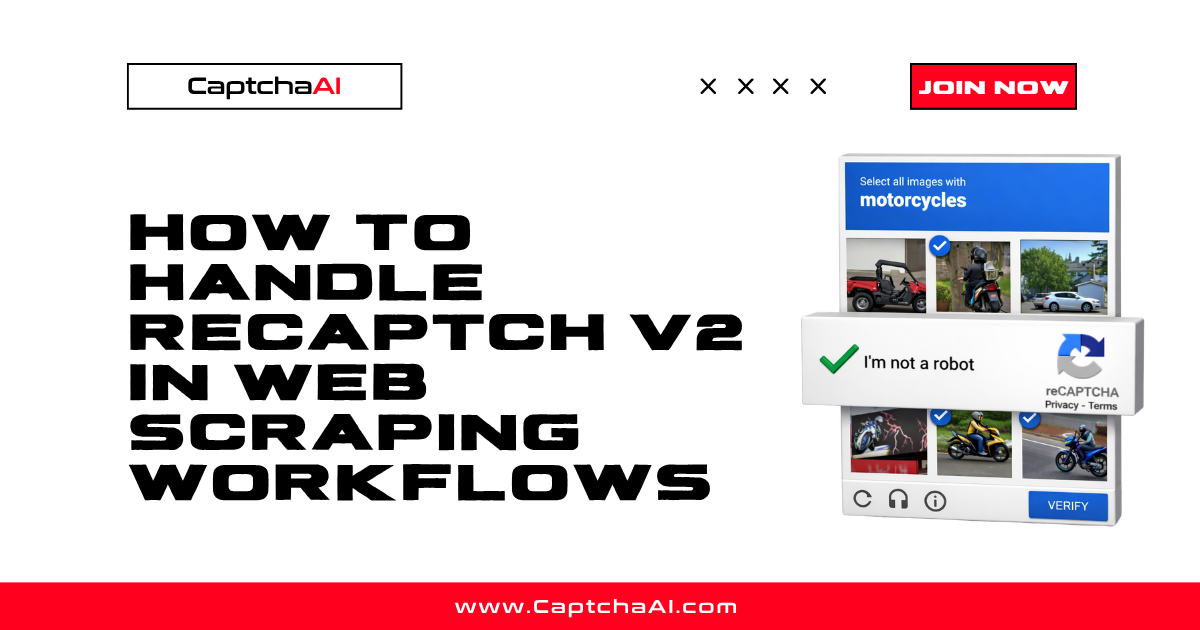
The simplest flow. The user sees the familiar "I'm not a robot" checkbox:
- User clicks the checkbox
- Google analyzes browser signals (mouse movement, cookies, history)
- If signals indicate low risk → green checkmark, token generated
- If signals indicate higher risk → image challenge triggers
The checkbox itself isn't the test — clicking it triggers Google's risk analysis engine. The decision to show an image challenge happens in milliseconds after the click.
When it passes without images: Users with Google account cookies, normal browsing patterns, and recognized IP addresses often pass with just a click.
Image Selection Challenges
When the checkbox triggers a challenge, the user sees one of several image formats:
Standard 3×3 Grid
Nine images arranged in a 3×3 grid. The prompt asks: "Select all images with [object]."
Common objects:
- Traffic lights
- Crosswalks
- Buses
- Bicycles
- Fire hydrants
- Motorcycles
- Stairs
- Chimneys
- Mountains
- Bridges
The user clicks all matching tiles and hits "Verify." If correct, the token is generated. If not, a new set appears.
4×4 Grid
Sixteen tiles in a 4×4 grid. Same concept, more tiles to examine. This format appears when Google wants higher confidence.
Dynamic (Fading) Images
The hardest visual challenge. After selecting a correct tile, it fades and a new image slides in to replace it. The user must continue selecting until no matching images remain.
This is a multi-round challenge that prevents simple pattern-matching:
- Select matching tiles
- Some tiles fade and new tiles appear
- Repeat until all matches are cleared
- Click "Verify"
Image Type Distribution
Based on common encounters:
| Object | Frequency |
|---|---|
| Traffic lights | Very common |
| Crosswalks | Very common |
| Buses | Common |
| Bicycles | Common |
| Fire hydrants | Common |
| Motorcycles | Moderate |
| Stairs | Moderate |
| Chimneys | Less common |
| Storefronts | Less common |
| Bridges | Less common |
Audio Challenge
An accessibility alternative to image challenges:
- User clicks the headphone icon in the CAPTCHA widget
- An audio clip plays with spoken numbers
- User types the numbers in the input field
- If correct, token is generated
Audio challenges use distorted speech to prevent automated speech recognition. The distortion level increases for suspicious users.
Key detail: The audio language matches the reCAPTCHA hl parameter or the browser's Accept-Language header.
Invisible reCAPTCHA
Invisible reCAPTCHA has no visible widget. It activates on a trigger (typically a button click) and runs Google's risk analysis in the background:
- Site binds reCAPTCHA to a button or programmatic trigger
- User clicks the button — no checkbox appears
- Google analyzes signals silently
- If low risk → token generated, form submits normally
- If high risk → popup image challenge appears
From an automation perspective, invisible reCAPTCHA works the same as standard v2 when sending to CaptchaAI — you provide the site key and page URL. CaptchaAI returns a valid token.
How CaptchaAI Handles Each Type
CaptchaAI abstracts away the challenge type entirely. You send the same parameters regardless of which challenge type appears:
| Parameter | Value |
|---|---|
method |
userrecaptcha |
googlekey |
Site key from the page |
pageurl |
URL where the CAPTCHA appears |
CaptchaAI determines the challenge type, solves it, and returns the token. You don't need to detect or specify whether it's a checkbox, image grid, audio, or invisible challenge.
Why This Works
The token format is identical across all challenge types. Whether Google verified the user through a simple checkbox click, a 10-round image selection, or an audio challenge — the resulting g-recaptcha-response token is the same format and validates the same way through siteverify.
Challenge Difficulty Factors
Google adjusts challenge difficulty based on:
| Factor | Effect |
|---|---|
| IP reputation | Known datacenter IPs get harder challenges |
| Browser cookies | No Google cookies → harder challenges |
| Browsing history | New browser profiles get harder challenges |
| Solve history | Multiple recent solves on same IP → increasing difficulty |
| Proxy type | Residential IPs get easier challenges than datacenter |
| Geographic signals | Mismatched timezone/locale/IP → harder |
Troubleshooting
| Issue | Cause | Fix |
|---|---|---|
| Getting multi-round image challenges | High risk score on current IP/profile | CaptchaAI handles these automatically |
| Audio challenges in wrong language | hl parameter different from expected |
Doesn't affect CaptchaAI token solving |
| Invisible reCAPTCHA not detected | No visible widget on page | Check page source for size: 'invisible' or badge attributes |
| Challenge loads but token times out | Very hard challenge taking too long | CaptchaAI manages retries internally |
FAQ
Can I choose which challenge type CaptchaAI solves?
No, and you don't need to. CaptchaAI handles whatever challenge type Google presents. The returned token works identically regardless of the challenge solved.
Are some challenge types faster to solve?
Checkbox-only challenges resolve fastest since no visual puzzle is needed. Multi-round dynamic image challenges take longest. CaptchaAI optimizes for speed across all types.
Does invisible reCAPTCHA require different API parameters?
No. Use the same userrecaptcha method with the site key and page URL. CaptchaAI detects invisible mode automatically. Some developers add invisible=1 as a hint, but it's optional.
Related Articles
- How To Solve Recaptcha V2 Callback Using Api
- Solve Recaptcha Invisible Python
- Recaptcha V2 Turnstile Same Site Handling
Next Steps
Solve every reCAPTCHA v2 challenge type — get your CaptchaAI API key and submit tasks with the site key.
Discussions (0)
Join the conversation
Sign in to share your opinion.
Sign InNo comments yet.