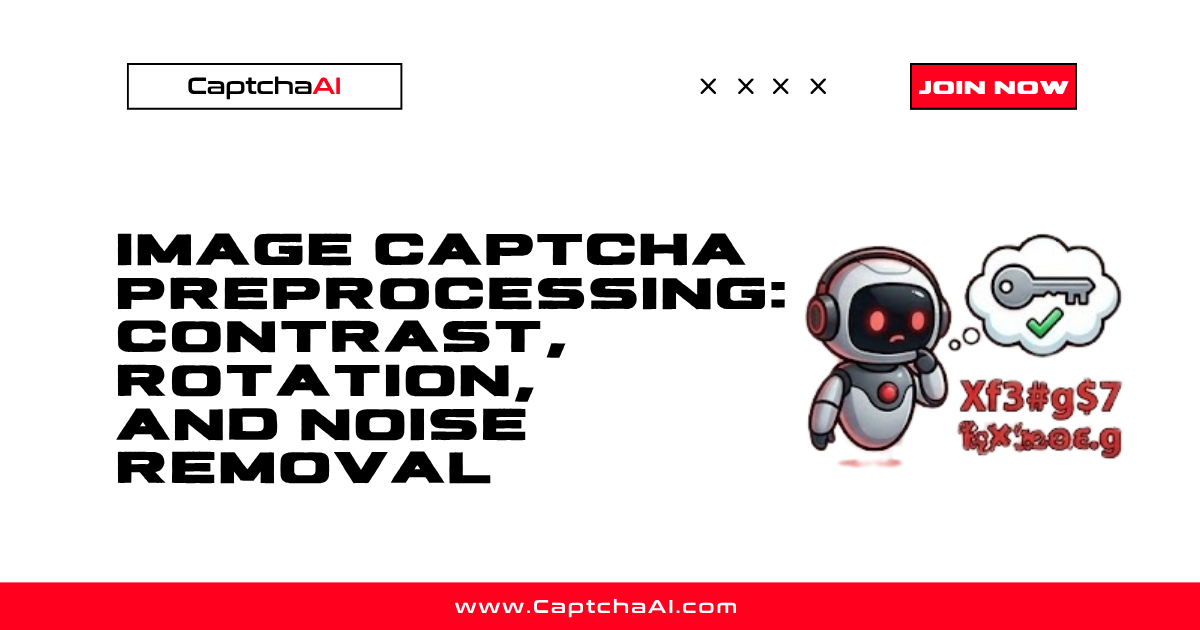
CaptchaAI handles over 27,500 image CAPTCHA types. While it solves most images as-is, preprocessing can improve results for particularly noisy, low-contrast, or rotated CAPTCHAs. A few lines of image processing before submission can turn an unreadable image into a clear one.
When to Preprocess
Preprocessing helps with:
| Image issue | Symptom | Preprocessing fix |
|---|---|---|
| Low contrast | Light text on light background | Increase contrast |
| Heavy noise | Dots, lines, or speckles obscure text | Noise removal |
| Rotation | Text is tilted or skewed | Deskew/rotation correction |
| Color complexity | Multi-colored background confuses OCR | Convert to grayscale |
| Small size | Image too small for clear recognition | Upscale |
CaptchaAI works well without preprocessing for most CAPTCHAs. Only preprocess when you encounter consistently low solve rates on specific CAPTCHA types.
Python Preprocessing with Pillow
Install Dependencies
pip install Pillow numpy
Grayscale Conversion
Remove color complexity:
from PIL import Image, ImageEnhance, ImageFilter
import io
import base64

def to_grayscale(image_bytes):
    img = Image.open(io.BytesIO(image_bytes))
    gray = img.convert("L")
    return gray
Contrast Enhancement
Make text stand out from the background:
def enhance_contrast(img, factor=2.0):
    enhancer = ImageEnhance.Contrast(img)
    return enhancer.enhance(factor)

# Usage
img = to_grayscale(raw_image_bytes)
img = enhance_contrast(img, factor=2.5)
| Factor | Effect |
|---|---|
| 0.5 | Reduced contrast (less useful) |
| 1.0 | Original contrast |
| 1.5 | Moderate increase |
| 2.0 | Strong increase |
| 3.0 | Very high contrast |
Noise Removal
Remove speckles and random dots:
def remove_noise(img, threshold=128):
    # Binarize: pixels above threshold become white, below become black
    binary = img.point(lambda x: 255 if x > threshold else 0)

    # Apply median filter to remove isolated pixels
    filtered = binary.filter(ImageFilter.MedianFilter(size=3))
    return filtered

# For heavier noise
def aggressive_denoise(img):
    # Gaussian blur followed by sharpening
    blurred = img.filter(ImageFilter.GaussianBlur(radius=1))
    sharpened = blurred.filter(ImageFilter.SHARPEN)
    return sharpened
Line Removal
Some CAPTCHAs overlay lines across the text:
import numpy as np

def remove_lines(img):
    arr = np.array(img)

    # Horizontal line detection: if a row has mostly dark pixels, it's a line
    for y in range(arr.shape[0]):
        dark_pixels = np.sum(arr[y] < 128)
        if dark_pixels > arr.shape[1] * 0.7:  # 70%+ dark = line
            arr[y] = 255  # Remove by making white

    # Vertical line detection
    for x in range(arr.shape[1]):
        dark_pixels = np.sum(arr[:, x] < 128)
        if dark_pixels > arr.shape[0] * 0.7:
            arr[:, x] = 255

    return Image.fromarray(arr)
Rotation Correction
Fix tilted CAPTCHA text:
def deskew(img):
    arr = np.array(img)

    # Find dark pixel coordinates
    coords = np.column_stack(np.where(arr < 128))
    if len(coords) < 10:
        return img

    # Calculate the angle using minimum bounding rectangle
    from scipy.ndimage import interpolation

    # Simple approach: try small angles and pick the one with best alignment
    best_angle = 0
    best_score = 0

    for angle in range(-15, 16):
        rotated = img.rotate(angle, fillcolor=255)
        arr_r = np.array(rotated)
        # Score: variance of row sums (higher = more aligned text)
        row_sums = np.sum(arr_r < 128, axis=1)
        score = np.var(row_sums)
        if score > best_score:
            best_score = score
            best_angle = angle

    return img.rotate(best_angle, fillcolor=255)
Complete Preprocessing Pipeline
def preprocess_captcha(image_bytes):
    img = Image.open(io.BytesIO(image_bytes))

    # Step 1: Grayscale
    img = img.convert("L")

    # Step 2: Contrast
    img = enhance_contrast(img, factor=2.0)

    # Step 3: Denoise
    img = remove_noise(img, threshold=140)

    # Step 4: Convert to base64 for CaptchaAI
    buffer = io.BytesIO()
    img.save(buffer, format="PNG")
    return base64.b64encode(buffer.getvalue()).decode()

# Send preprocessed image to CaptchaAI
processed_b64 = preprocess_captcha(raw_image_bytes)
JavaScript Preprocessing with Canvas
function preprocessCaptcha(imageElement) {
  const canvas = document.createElement('canvas');
  canvas.width = imageElement.naturalWidth;
  canvas.height = imageElement.naturalHeight;
  const ctx = canvas.getContext('2d');

  // Draw original
  ctx.drawImage(imageElement, 0, 0);
  const imageData = ctx.getImageData(0, 0, canvas.width, canvas.height);
  const data = imageData.data;

  for (let i = 0; i < data.length; i += 4) {
    // Grayscale conversion
    const gray = data[i] * 0.299 + data[i + 1] * 0.587 + data[i + 2] * 0.114;

    // Contrast enhancement (factor 2.0)
    const enhanced = Math.min(255, Math.max(0, (gray - 128) * 2 + 128));

    // Binarization (threshold 140)
    const binary = enhanced > 140 ? 255 : 0;

    data[i] = binary;     // R
    data[i + 1] = binary; // G
    data[i + 2] = binary; // B
    // Alpha unchanged
  }

  ctx.putImageData(imageData, 0, 0);

  // Return as base64
  return canvas.toDataURL('image/png').split(',')[1];
}
Submitting Preprocessed Images
import requests

def solve_preprocessed(image_base64):
    resp = requests.post("https://ocr.captchaai.com/in.php", data={
        "key": "YOUR_API_KEY",
        "method": "base64",
        "body": image_base64,
        "json": 1
    })
    return resp.json()
Preprocessing Comparison
| Technique | When to use | Typical improvement |
|---|---|---|
| Grayscale | Multi-colored backgrounds | 5–15% |
| Contrast boost | Light/washed-out text | 10–25% |
| Noise removal | Speckled/dotted backgrounds | 10–30% |
| Line removal | CAPTCHAs with overlay lines | 15–30% |
| Deskew | Tilted text | 10–20% |
| Combined pipeline | Heavy obfuscation | 20–50% |
Troubleshooting
| Issue | Cause | Fix |
|---|---|---|
| Preprocessing makes results worse | Over-processing removes character details | Reduce contrast factor or threshold |
| Black image after binarization | Threshold too high | Lower threshold (try 100–120) |
| Characters partially removed | Noise removal too aggressive | Increase MedianFilter size or use blur instead |
| Rotated correction wrong direction | Angle detection error | Limit rotation range or skip for slight tilts |
| Image too large after processing | PNG larger than base64 limit | Compress or reduce dimensions |
FAQ
Should I always preprocess before sending to CaptchaAI?
No. CaptchaAI handles 27,500+ image CAPTCHA variants and processes most images correctly without any preprocessing. Only preprocess when you see consistently low accuracy on a specific CAPTCHA type.
Does preprocessing affect the CaptchaAI price?
No. Pricing is per-solve regardless of image quality. However, better images lead to faster solves and fewer retries, reducing your effective cost.
What format should I use for preprocessed images?
PNG preserves quality best for preprocessed CAPTCHAs. Avoid JPEG for binarized images — JPEG compression adds artifacts that can reduce accuracy.
Next Steps
Improve image CAPTCHA results — get your CaptchaAI API key and preprocess only when needed.